Types of map: satellite, terrain, 3D, transit, cycling and more
On this page
The ribbon under the Maps search box lists the types of map. Each one turns the map into a different view, such as satellite pictures or bike paths, and its panel explains what you are looking at and lists good places to start.
#The ribbon

The start of the ribbon. Scroll it sideways, or use the arrow at its right end, to reach the rest.
- 1Explore: the map home
- 2Directions
- 3Saved places
- 4A map type: its page switches the map for you
The ribbon holds, in order: Explore, Directions, Saved, Satellite, Terrain, 3D cities, Transit, Cycling, Travel times, Weather radar, Earthquakes, Wildfires, Air quality, Data centers, Street-level photos, Wikipedia and World.
- Selecting a type switches the map to it. If the map is already at a zoom that suits the new type (a city for Transit, anywhere for Satellite), the map stays where it is; otherwise it flies to a good example.
- What one type turned on is turned off when you choose the next one, so views do not pile up, and Explore turns off what the last type turned on. Layers you turned on yourself in the Layers menu stay on.
- Opening a place or a search leaves the map type as it is: you can look at satellite pictures of the place you just found.
You can also make the same changes yourself, and combine them, in the Layers menu.
#Satellite
Pictures of the ground, with streets and place names drawn on top so you do not lose your way.
How sharp the pictures are depends on where you look:
- Zoomed out, you see the whole planet from space.
- In the United States (the 48 states, Alaska, Hawaii and Puerto Rico), France, Spain, the Netherlands, much of Germany, Japan and several other countries and regions, the pictures are aerial photos from national mapping agencies. You can zoom in far enough to see single houses, cars and trees.
- Everywhere else, the pictures come from a satellite mosaic with about 10 meters per dot: you can make out towns, fields and big roads, but the picture turns soft as you zoom in on a building.
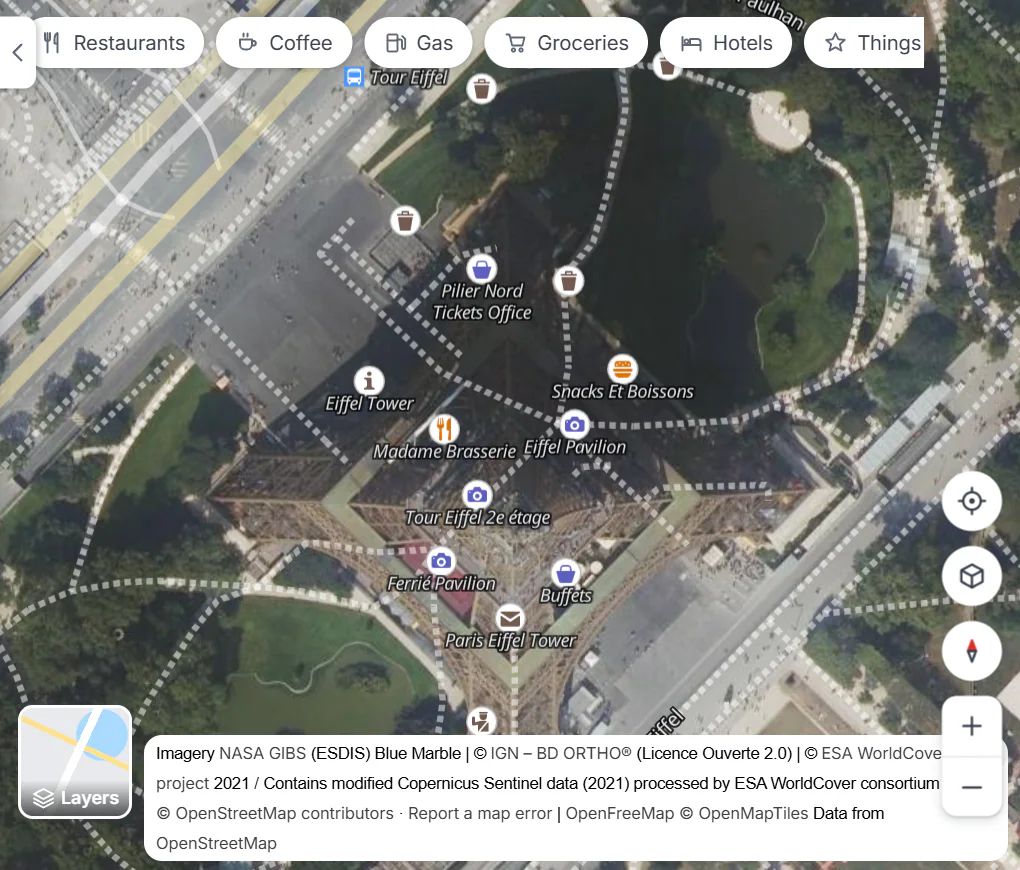
The Eiffel Tower, close up: France publishes sharp aerial photos. The credit at the bottom names the source of what is in view.
- 1The credit names the source of the photos in view
- 2Layers: switch back to the street map
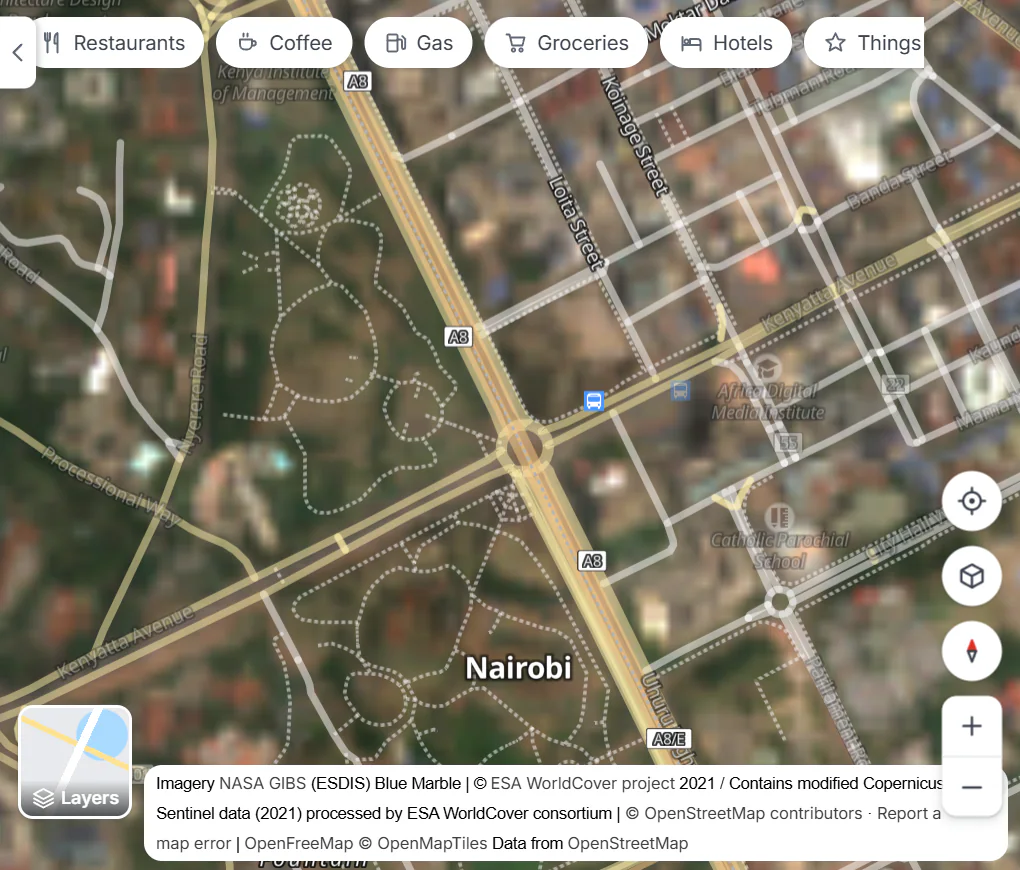
Central Nairobi at a similar zoom: here only the world satellite mosaic is available, and the picture stays soft.
- 1Here the credit names the world satellite mosaic
The credit at the bottom right of the map always names the source of the pictures in view. The pictures are not live: they were taken months or years ago, depending on the source.
The Satellite panel has switches for Street-level photos and Wikipedia, and a list of Places to look at, from the Grand Canyon to Shibuya Crossing.
#Terrain
Shaded hills and valleys, tilted into 3D so mountains stand up. The panel's 3D terrain switch flattens or tilts them again, and its list of Mountains and canyons flies you to Everest, Denali, the Matterhorn and more.
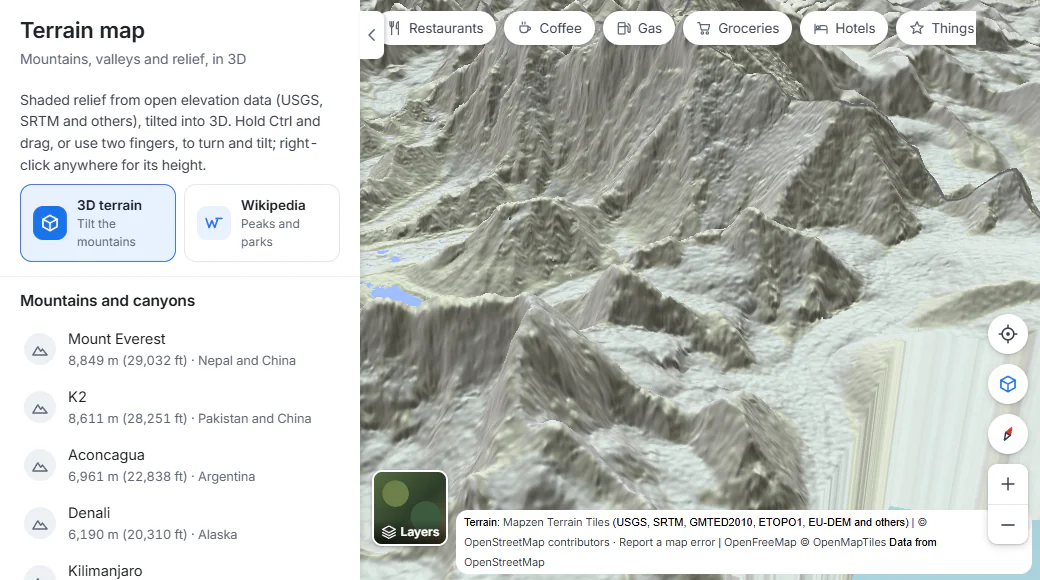
The Terrain page opens on Mount Everest in 3D.
- 13D terrain: switch the tilt on or off
- 2Famous peaks and canyons: select one to fly there
- 3Tilt button
Right-click any spot, choose What's here?, and the panel gives its elevation.
#3D cities
Every building that OpenStreetMap knows the height of, drawn in 3D. It needs you to be zoomed in on a city; the panel lists a dozen skylines to start from, from Midtown Manhattan to Marina Bay in Singapore. Hold Ctrl and drag (or use two fingers) to turn and tilt the city. See Map controls and gestures.
#Transit
Subway lines in blue, trams in orange, light rail in green and railways in brown, with the stations as small circles. It shows where the lines run; it does not plan trips or show timetables. How much you see depends on how much of a city's network is mapped in OpenStreetMap: railways and stations appear almost everywhere, while the colored subway and tram lines are missing in some cities.
#Cycling
Bike paths and bike lanes in solid green, and streets, tracks and trails open to bikes as a dashed green line. Zoom in on a town to see them. For a route, use Directions with Bike.
#Travel times
Click anywhere on the map and shaded areas show how far you can get from there in 10, 20 and 30 minutes by car or bike, or 5, 10 and 15 minutes on foot. See Travel times.
#Street-level photos
Blue areas and lines show where contributors to Panoramax, a free and open photo collection, have taken pictures of streets and paths, many of them 360° panoramas. Coverage is densest in France and other parts of Europe; elsewhere it is patchy.
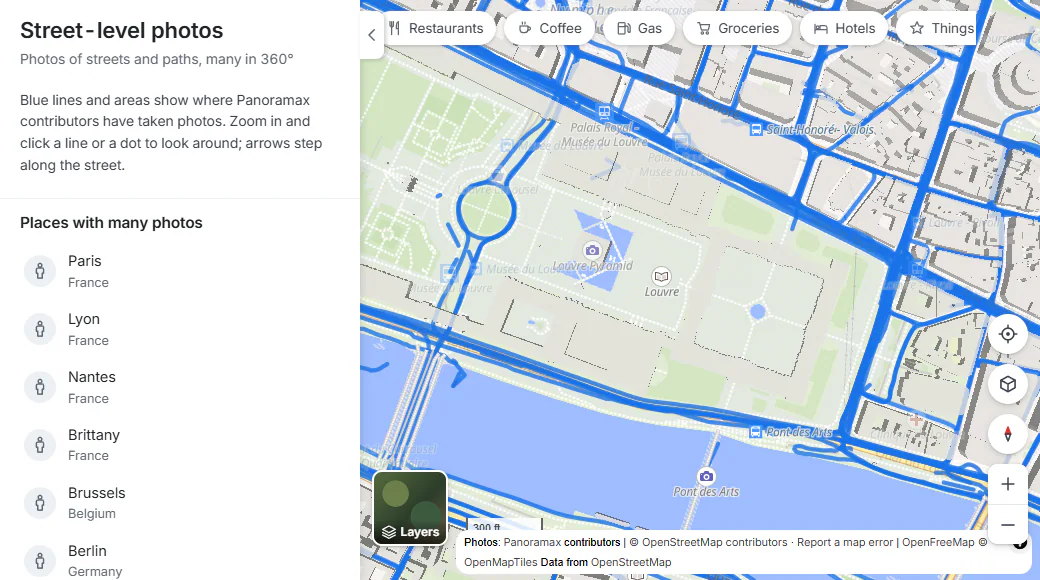
Central Paris on the Street-level photos map. Zoom in and select a blue line to look around.
- 1How it works
- 2Blue lines: photos exist along these streets
Zoom in, then select a blue line or a dot to open the photo taken there. In the viewer you can look around, step along the street and return to the map. See Place pages.
#Wikipedia
W markers show Wikipedia articles about places near the middle of the map: landmarks, buildings, parks, stations. Move the map and new markers appear. Select one for a short description, a photo and a Read on Wikipedia link. The markers appear once you zoom in on a town; the panel suggests Rome, Paris, Kyoto and other places to start.
#The live maps
Weather radar, Earthquakes, Wildfires and Air quality show what is happening now. See Live maps. Data centers has its own page: The data center map.
#Common questions
How old are the satellite pictures?
It depends on the source: each country renews its aerial photos on its own schedule, and the world mosaic is from 2021. None of them is live, so a new building may not show yet.
Why does the satellite picture get blurry when I zoom in?
In places without national aerial photos, Maps uses a world mosaic in which each dot covers about 10 meters. Zooming in further enlarges the same dots. In the United States and the countries listed above, you can zoom in much closer.
Can I see a street from the sidewalk, like a street view?
Where Panoramax contributors have taken photos, yes: turn on Street-level photos and select a blue line. Coverage is good in parts of Europe and thin in many other places.
Why do I see no colored subway lines in my city?
The Transit map draws only what OpenStreetMap volunteers have tagged as subway, tram or light rail. Where they have not, you still see the railways and stations.